

 English
 简体中文
简体中文 Español
 हिन्दी
 العربية
 Português (Brasil)
 Français
 Русский
 日本語
日本語 Deutsch
 Bahasa Indonesia
 한국어
한국어 Türkçe
 Italiano
 Tiếng Việt
 ไทย
ไทย বাংলা
বাংলা اردو
اردو فارسی
فارسی Polski
 Українська
 Nederlands
 Bahasa Melayu
 Filipino
 繁體中文
繁體中文 Română
 Ελληνικά
 Čeština
 Magyar
 Svenska
 עברית
עברית Қазақша
 Oʻzbekcha
 Azərbaycanca
 Kiswahili
 Dansk
Dansk Suomi
SuomiConverters
Sizes
A size chart for clothing and shoes: European, American, British and other systems.
You can always download our app to your phone and keep it at hand.
Try it right here
A web version of this mode is on its way, so you'll be able to calculate right on the site with nothing to install. Until then, it's waiting for you in the app.
What it calculates
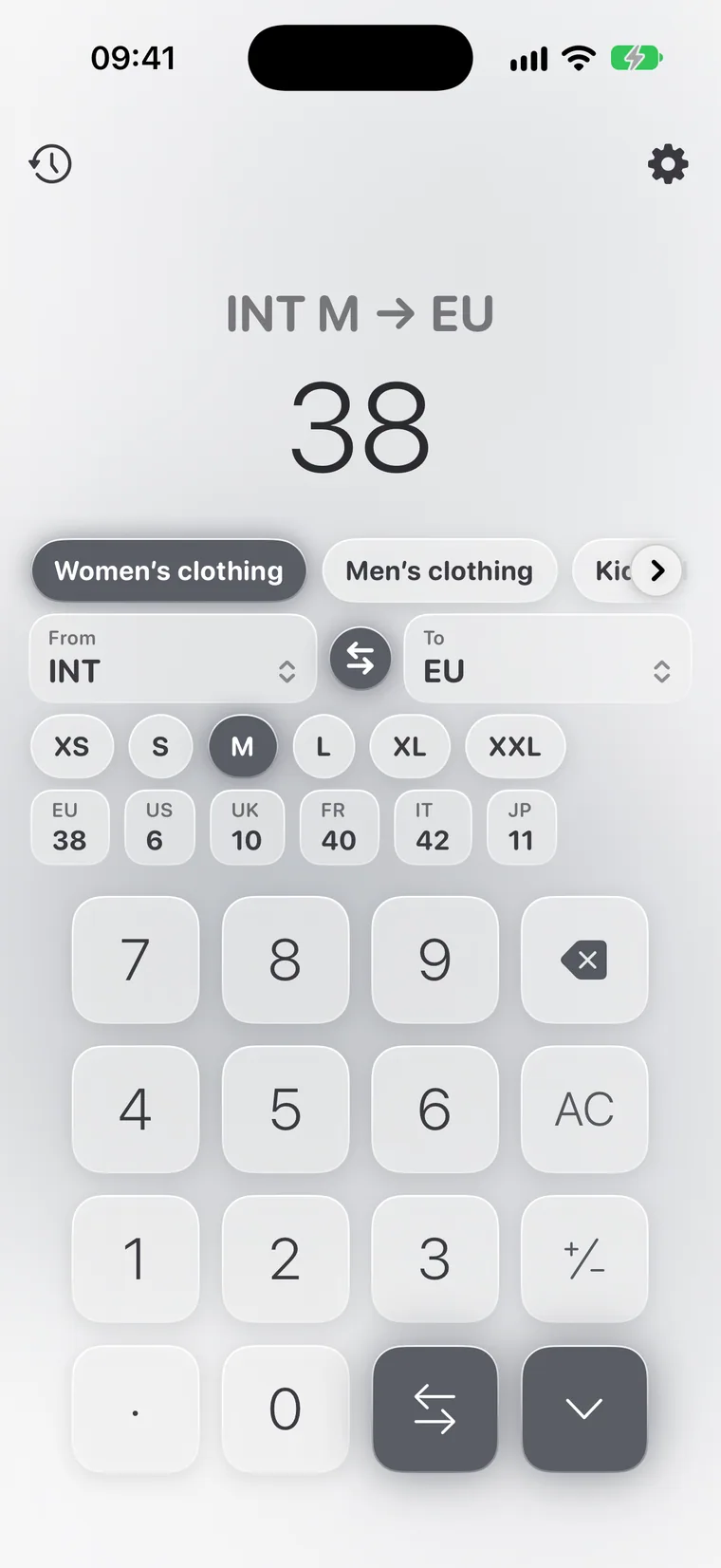
Our clothing and shoe size converter online covers women's and men's clothing in INT, EU, US, UK, FR, IT and JP systems, children's clothing by height and age, and shoes in EU, US, UK and by foot length in centimeters.
It helps when you shop at foreign online stores. These are the commonly used charts, and sizes may differ slightly from brand to brand.
- Women's clothing: INT, EU, US, UK, FR, IT, JP
- Men's clothing: INT, EU, US, UK, IT, JP
- Children's clothing: height, age, US
- Shoes for women, men and kids: EU, US, UK and foot length in centimeters
How to use it
- Choose a category.
- Choose a system and your size.
- See the matching sizes in all the other systems.
Example
FAQ
Are the sizes exact?
These are the commonly used charts. Brands sometimes differ, so check the store's size chart.
How do I pick shoes by foot length?
Choose the “cm” system and enter your foot length to see the EU, US and UK sizes.
How do I convert a US clothing size to a European one?
Choose the category, women's or men's clothing, then the US system and your size. Calcie shows EU, UK, INT and the other systems all at once.
Does the “Sizes” mode work offline?
Yes. Calcie does all its math right on your device, so the mode works on a plane, on the subway and out of town. Nothing is sent to any server, and the answer appears instantly.
Is “Sizes” available on iPad and Mac?
Yes. On iPad the mode has its own layout with larger fields, and on a Mac with Apple Silicon Calcie runs in its iPad version and works from the keyboard. Your Premium purchase applies on every device signed in with your Apple ID.
How do I switch to the “Sizes” mode?
Open the modes menu, the icon at the top left of the calculator's main screen, and choose “Sizes”. Calcie remembers your choice: next time the app opens right in that mode.