

 English
 简体中文
简体中文 Español
 हिन्दी
 العربية
 Português (Brasil)
 Français
 Русский
 日本語
日本語 Deutsch
 Bahasa Indonesia
 한국어
한국어 Türkçe
 Italiano
 Tiếng Việt
 ไทย
ไทย বাংলা
বাংলা اردو
اردو فارسی
فارسی Polski
 Українська
 Nederlands
 Bahasa Melayu
 Filipino
 繁體中文
繁體中文 Română
 Ελληνικά
 Čeština
 Magyar
 Svenska
 עברית
עברית Қазақша
 Oʻzbekcha
 Azərbaycanca
 Kiswahili
 Dansk
Dansk Suomi
SuomiCalculators
Time
Adding hours and minutes, work shifts and time across midnight, with no converting to minutes in your head.
You can always download our app to your phone and keep it at hand.
Try it right here
A web version of this mode is on its way, so you'll be able to calculate right on the site with nothing to install. Until then, it's waiting for you in the app.
What it calculates
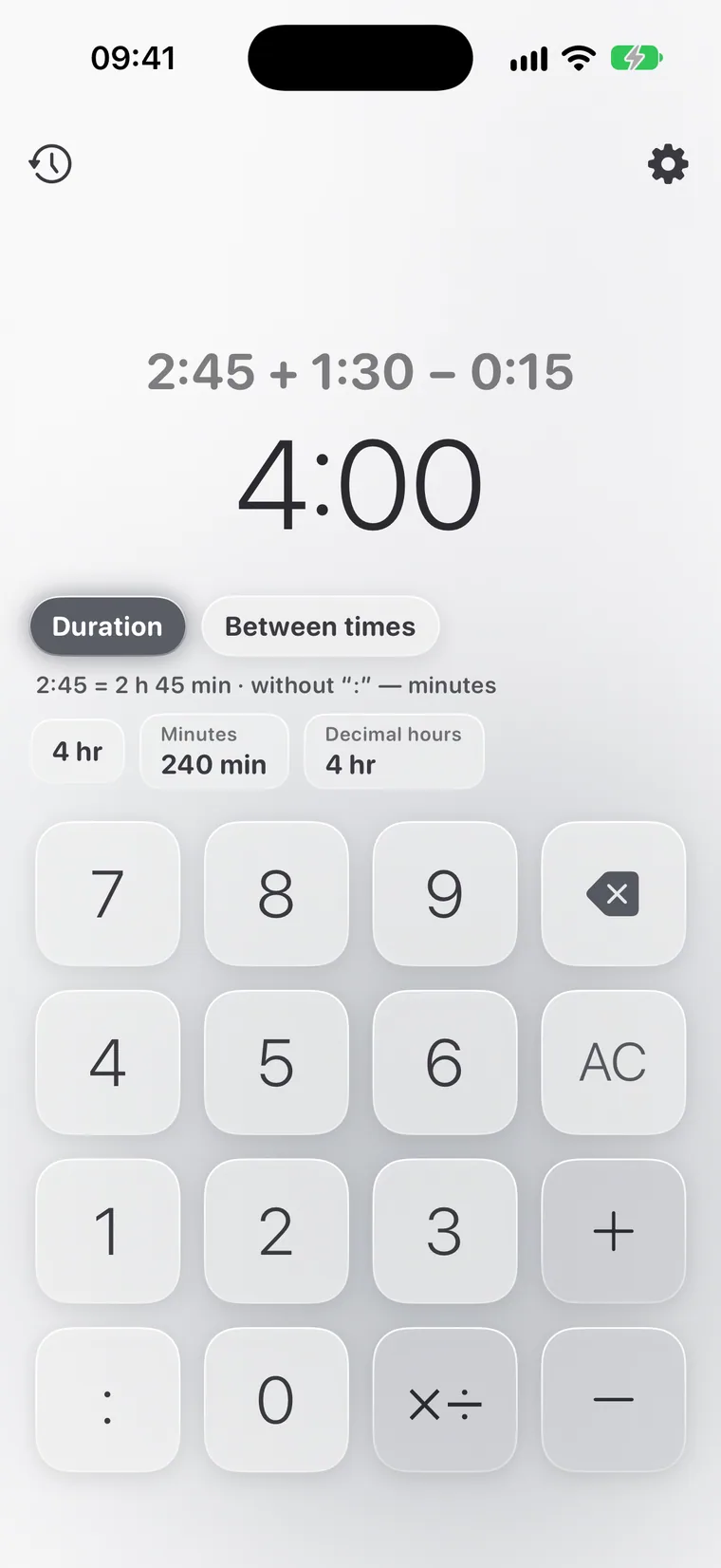
Our time calculator online adds and subtracts hours, minutes and seconds, multiplies and divides time by a number, and finds the duration between two moments, including across midnight and with a break subtracted.
It works well for timesheets and tracking work hours, workout times, video lengths and shifts. The result is shown as h:mm, in minutes, in hours as a fraction and in days.
- Duration: add and subtract hours, minutes and seconds
- Multiply and divide time by a number
- Time between the start and end of a shift, with a break
- The result in minutes, decimal hours and days
How to use it
- Pick the “Duration” or “Between times” tab.
- Enter time with a colon: 2:45 is 2 hours 45 minutes, and without a colon it's minutes.
- For a shift, enter the start, the end and the break. Crossing midnight is handled for you.
Example
FAQ
How do I total hours for a timesheet?
Add up your shifts on the “Duration” tab and look at “Decimal hours”. For example, 7:30 is 7.5.
Does it handle night shifts?
Yes. If the end is earlier than the start, Calcie understands the shift ran past midnight.
How do I convert minutes to hours?
Enter a number without a colon, and it's treated as minutes. Calcie shows the same time as h:mm and as decimal hours: 135 minutes is 2:15, or 2.25 hours.
Does the “Time” mode work offline?
Yes. Calcie does all its math right on your device, so the mode works on a plane, on the subway and out of town. Nothing is sent to any server, and the answer appears instantly.
Is “Time” available on iPad and Mac?
Yes. On iPad the mode has its own layout with larger fields, and on a Mac with Apple Silicon Calcie runs in its iPad version and works from the keyboard. Your Premium purchase applies on every device signed in with your Apple ID.
How do I switch to the “Time” mode?
Open the modes menu, the icon at the top left of the calculator's main screen, and choose “Time”. Calcie remembers your choice: next time the app opens right in that mode.